Violent Party Controls
Every input you need, on every device, in one place.
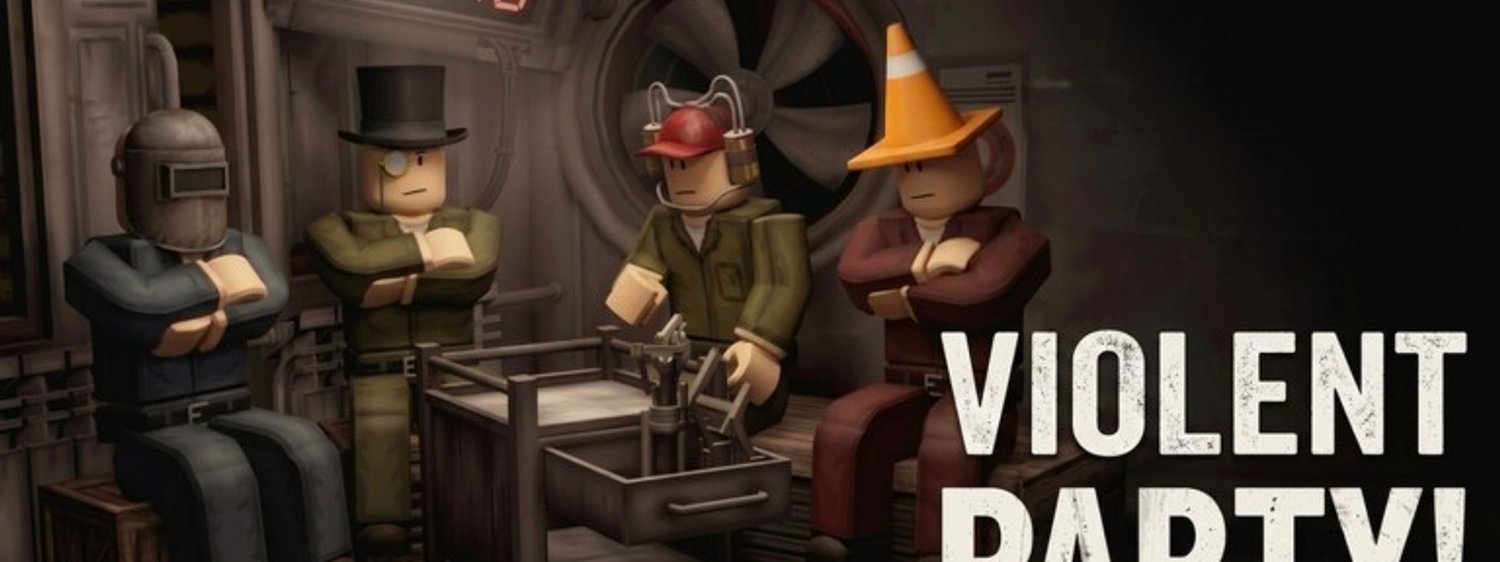
Violent Party uses the standard Roblox control layout. You do not need a custom keybind to play well, but a few rebinds can make camera control and reaction time noticeably better. This page maps every action you will use, on PC, mobile, and console.
PC controls
The default PC bindings are exactly what Roblox ships. If you have played any Roblox experience, these will feel familiar.
| Action | Default key | Notes |
|---|---|---|
| Move forward | W | Hold to keep moving — most rounds reward continuous movement. |
| Strafe left | A | Use for lateral dodging in timing rounds. |
| Move back | S | Rarely needed; useful for backing away from the safe zone edge. |
| Strafe right | D | Pairs with A for clean sideways dodges. |
| Jump | Space | Disabled in some rounds; check the on-screen prompt before jumping. |
| Look / camera | Mouse | The most important control — keep it moving. |
| Roblox menu | Esc | Opens the settings overlay. |
| In-experience chat | Enter | Sends a message to the lobby chat. |
Recommended rebinds
Most PC players do not need to remap anything for their first session, but two changes help if you play more than a few hours a week:
- Shift to sprint — Roblox does not ship a default sprint key. Binding Shift to your executor’s sprint function lets you break out of cluster spawns faster.
- Mouse side buttons — bind mouse 4 / mouse 5 to camera recentre and quick chat so you can react without moving your fingers off WASD.
Mobile controls
Mobile uses the Roblox touch layout. There is no custom HUD.
- Virtual joystick (bottom-left) — character movement.
- Jump button (bottom-right) — appear when the round allows jumping.
- Camera drag — touch and drag anywhere on screen to rotate the camera.
- On-screen prompts — interact with whatever the round displays.
Mobile tips
- Hold the device in landscape mode for a wider field of view.
- Use two thumbs — one for the joystick, one for the camera drag. The default one-thumb layout is too slow for timing rounds.
Console controls
Roblox supports Xbox and PlayStation controllers through the official client. The bindings below match what Roblox ships by default.
| Action | Controller input | Notes |
|---|---|---|
| Move | Left stick | Hold to keep moving. |
| Camera | Right stick | Keep moving — same rule as mouse. |
| Jump | A button (Xbox) / Cross (PlayStation) | Disabled in some rounds. |
| Roblox menu | Start / Options | Opens the overlay. |
| Interact | Right trigger | When a round shows an interaction prompt. |
Reading on-screen prompts
Every Violent Party round that requires a non-default action displays an on-screen prompt. Read it the moment the round begins — it tells you the exact key or button to use. Common prompts include:
- “Press E to interact”
- “Hold Space to charge”
- “Tap [button] on the rhythm”
Common control mistakes
- Holding forward without looking — most rounds reward camera motion, not WASD spam.
- Spamming jump in timing rounds — the jump itself can trigger a failure condition.
- Ignoring the Roblox menu — if your controls misbehave, the menu is where you reset bindings.
For a multiplayer-friendly setup, read the How to play with friends guide.
Reading the in-game input signal
Every round adds one small visual hint that tells you which control matters most in the next 5 seconds:
- A mouse cursor highlight on an interactable object means a click or trigger press is coming — keep your dominant hand near the input.
- A glowing joystick ring on mobile means the round will ask for a directional dodge; tilt the joystick before the hazard arrives.
- A button icon above an NPC names the exact key the round expects, so you never need to guess between Space, E, and the triggers.
- A rhythm bar at the bottom of the screen signals a timing round, so switch off sprint and prepare to tap on the beat.
If the visual hint and the on-screen prompt disagree, the prompt wins — the hint is a head-start, not a guarantee.
Frequently Asked Questions
Quick answers to the most common questions.
Do I need a custom keybind for Violent Party?
No. The default Roblox bindings work for every round. Sprint and mouse side button rebinds are quality-of-life improvements, not requirements.
Can I use a controller on PC?
Yes. Roblox supports Xbox, PlayStation, and most generic XInput controllers. Bindings match the console layout above.